> ## Documentation Index
> Fetch the complete documentation index at: https://docs.decisional.com/llms.txt
> Use this file to discover all available pages before exploring further.
# Using Dex
> Start work, ask questions, run agents, and review approvals from the web app, Slack, email, or mobile
Dex is Decisional's conversational operator. Use it to ask questions about agents and runs, start one-off work, run agents, view agent details, and review approvals across the tools and context your workspace has authorized.
## How Dex Runs
Each organization's Dex runs on its own dedicated orchestrator computer (VM). This long-running computer receives requests, keeps channel connections available, and carries out work using the tools and context your organization has authorized.
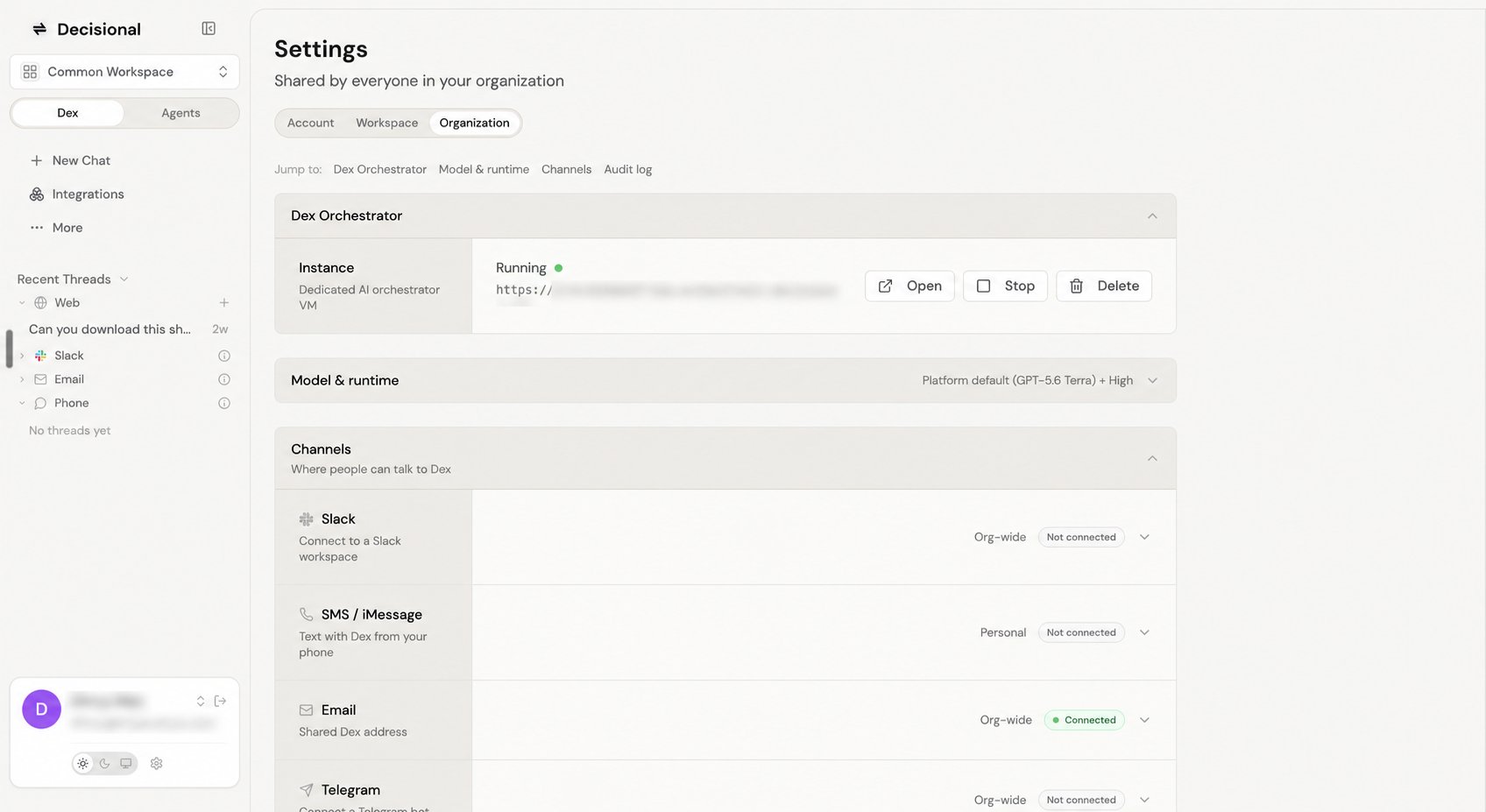
Open **Settings → Organization** to see whether the computer is running. Organization owners and admins can open, stop, start, or delete it. They can also choose the model and runtime settings. Some settings changes briefly restart the computer while the new configuration is applied.
 ## What You Can Ask For
Ask about an agent, source, run, file, approval, or output without opening every underlying screen.
Use an agent's available context and connected tools for work that does not need a reusable workflow.
Summarize what happened, identify the step that broke, and surface the relevant logs, files, or outputs.
Start an agent, check its details, or review recent runs without opening every underlying screen.
## Channels
Dex can meet you where the work starts. You can connect several channels at the same time, such as Slack and email for the organization and SMS or iMessage for your own account. Requests from every connected channel are routed to the same organization Dex.
Start new work, inspect runs, review files, and open the Decisional web app when configuration needs to change.
Chat with Dex from team conversations, ask for updates, and keep work moving without leaving the thread where the request started.
Send requests, receive summaries, and handle asynchronous follow-ups through email when a workflow needs a written trail.
Text Dex from your phone through a personal connection. You can optionally route that number to a specific agent.
Connect a Telegram bot so people can talk to the organization Dex from Telegram.
Connect Dex to supported chats, spaces, or channels used by your team.
Configure these connections in **Settings → Organization → Channels**. Expand a channel to connect it or review its setup.
### How channel scope works
The scope label tells you who uses the connection:
* **Org-wide** connections are shared by everyone in the organization. Slack, email, Telegram, Google Chat, and Microsoft Teams use this scope.
* **Personal** connections belong only to the signed-in account. SMS or iMessage uses this scope, and each account can connect one number.
The Settings tabs use the same idea:
* **Account** contains settings that affect only you, such as your profile and notifications.
* **Workspace** contains settings for the workspace selected in the top-left menu, such as members, access, and workspace keys.
* **Organization** contains settings shared across the organization, including the dedicated Dex computer, model and runtime, channels, and audit log.
The selected workspace determines your current context and whether you have permission to manage the organization. It does not create a separate Dex computer for every workspace: the dedicated computer belongs to the organization.
## Approval requests
When you ask Dex to perform a write action from Slack, such as creating a Linear issue, Dex can post an approval request before the action runs. The request summarizes the action, shows the app or record involved, includes an approval link, and keeps the review in the same thread as the original ask.
## What You Can Ask For
Ask about an agent, source, run, file, approval, or output without opening every underlying screen.
Use an agent's available context and connected tools for work that does not need a reusable workflow.
Summarize what happened, identify the step that broke, and surface the relevant logs, files, or outputs.
Start an agent, check its details, or review recent runs without opening every underlying screen.
## Channels
Dex can meet you where the work starts. You can connect several channels at the same time, such as Slack and email for the organization and SMS or iMessage for your own account. Requests from every connected channel are routed to the same organization Dex.
Start new work, inspect runs, review files, and open the Decisional web app when configuration needs to change.
Chat with Dex from team conversations, ask for updates, and keep work moving without leaving the thread where the request started.
Send requests, receive summaries, and handle asynchronous follow-ups through email when a workflow needs a written trail.
Text Dex from your phone through a personal connection. You can optionally route that number to a specific agent.
Connect a Telegram bot so people can talk to the organization Dex from Telegram.
Connect Dex to supported chats, spaces, or channels used by your team.
Configure these connections in **Settings → Organization → Channels**. Expand a channel to connect it or review its setup.
### How channel scope works
The scope label tells you who uses the connection:
* **Org-wide** connections are shared by everyone in the organization. Slack, email, Telegram, Google Chat, and Microsoft Teams use this scope.
* **Personal** connections belong only to the signed-in account. SMS or iMessage uses this scope, and each account can connect one number.
The Settings tabs use the same idea:
* **Account** contains settings that affect only you, such as your profile and notifications.
* **Workspace** contains settings for the workspace selected in the top-left menu, such as members, access, and workspace keys.
* **Organization** contains settings shared across the organization, including the dedicated Dex computer, model and runtime, channels, and audit log.
The selected workspace determines your current context and whether you have permission to manage the organization. It does not create a separate Dex computer for every workspace: the dedicated computer belongs to the organization.
## Approval requests
When you ask Dex to perform a write action from Slack, such as creating a Linear issue, Dex can post an approval request before the action runs. The request summarizes the action, shows the app or record involved, includes an approval link, and keeps the review in the same thread as the original ask.
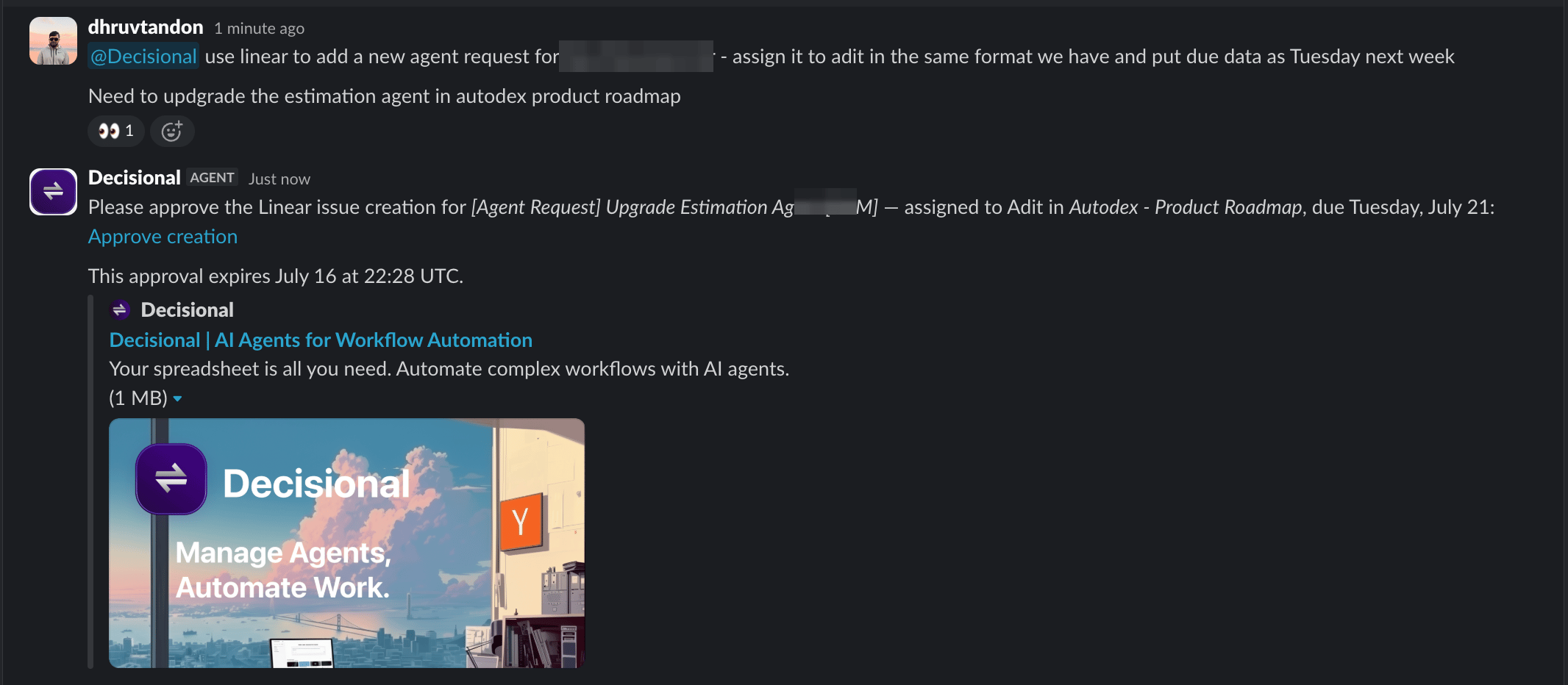 In this example, Dex waits to create the Linear issue until someone selects **Approve creation**. The expiration timestamp limits how long the approval link can be used, and the thread keeps the request, approval, and resulting artifact together.
Learn how ask, bypass, and tool policies control agent actions.
## Relationship to Agents
Dex is where you ask for work and review what happened. Agents are saved automations with their own instructions, connected tools, schedules, files, run history, and approval settings.
Use Dex to run an agent or inspect its details and runs. For configuration changes, Dex points you to the Decisional web app, where you can edit the agent's setup.
## Related docs
Understand Chat Mode, Operator Mode, and Run Mode for agents.
Learn how ask, bypass, and tool policies control agent actions.
In this example, Dex waits to create the Linear issue until someone selects **Approve creation**. The expiration timestamp limits how long the approval link can be used, and the thread keeps the request, approval, and resulting artifact together.
Learn how ask, bypass, and tool policies control agent actions.
## Relationship to Agents
Dex is where you ask for work and review what happened. Agents are saved automations with their own instructions, connected tools, schedules, files, run history, and approval settings.
Use Dex to run an agent or inspect its details and runs. For configuration changes, Dex points you to the Decisional web app, where you can edit the agent's setup.
## Related docs
Understand Chat Mode, Operator Mode, and Run Mode for agents.
Learn how ask, bypass, and tool policies control agent actions.