> ## Documentation Index
> Fetch the complete documentation index at: https://docs.decisional.com/llms.txt
> Use this file to discover all available pages before exploring further.
# Monitoring Runs
> Follow agent activity, inspect workflow steps, and recover incomplete work
A **run** is one execution of an agent. The Runs view shows what is active, what completed, and where an incomplete run needs attention.
## Open Agent Runs
Open an agent and choose **Runs** to see its execution history. If the agent has no runs yet, start a test or live run first.
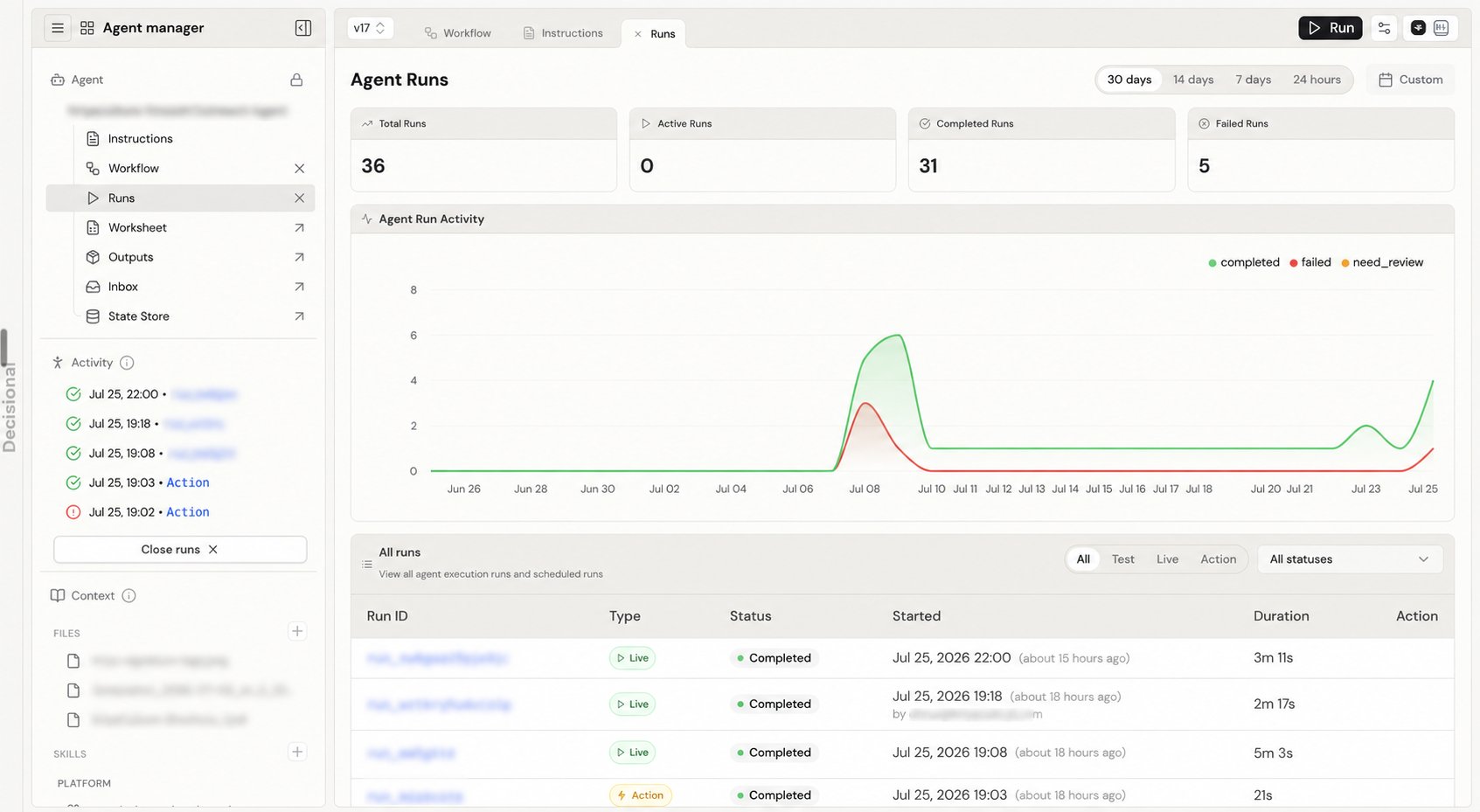
The Agent Runs page has three parts:
* Summary cards for **Total Runs**, **Active Runs**, **Completed Runs**, and **Failed Runs**
* An activity chart for the selected time period
* A table of individual runs
 ### Filter the run list
Use the controls above the table to narrow the list:
| Control | Available choices |
| - | - |
| **Time period** | 30 days, 14 days, 7 days, 24 hours, or a custom date range |
| **Run type** | All, Test, Live, and Action. Build runs are also visible to administrators. |
| **Status** | Any run status, including active, waiting, and final states |
The run table shows the information that is available for every execution:
| Column | What it shows |
| - | - |
| **Run ID** | The public identifier for the run |
| **Type** | Test, Live, Action, or Build |
| **Status** | The current run state |
| **Started** | Start date and time, relative time, and the person who started it when available |
| **Duration** | Elapsed execution time |
| **Action** | Cancel or Resume when that action is available |
A schedule, webhook, API call, or manual request can start a run, but the run list groups executions by **Test**, **Live**, **Action**, and **Build** rather than by trigger source.
## Select a Run
Select a row to open that run in the agent workspace. Decisional places the workflow in run context and opens the run summary on the right.
### Filter the run list
Use the controls above the table to narrow the list:
| Control | Available choices |
| - | - |
| **Time period** | 30 days, 14 days, 7 days, 24 hours, or a custom date range |
| **Run type** | All, Test, Live, and Action. Build runs are also visible to administrators. |
| **Status** | Any run status, including active, waiting, and final states |
The run table shows the information that is available for every execution:
| Column | What it shows |
| - | - |
| **Run ID** | The public identifier for the run |
| **Type** | Test, Live, Action, or Build |
| **Status** | The current run state |
| **Started** | Start date and time, relative time, and the person who started it when available |
| **Duration** | Elapsed execution time |
| **Action** | Cancel or Resume when that action is available |
A schedule, webhook, API call, or manual request can start a run, but the run list groups executions by **Test**, **Live**, **Action**, and **Build** rather than by trigger source.
## Select a Run
Select a row to open that run in the agent workspace. Decisional places the workflow in run context and opens the run summary on the right.
 ### Read the workflow graph
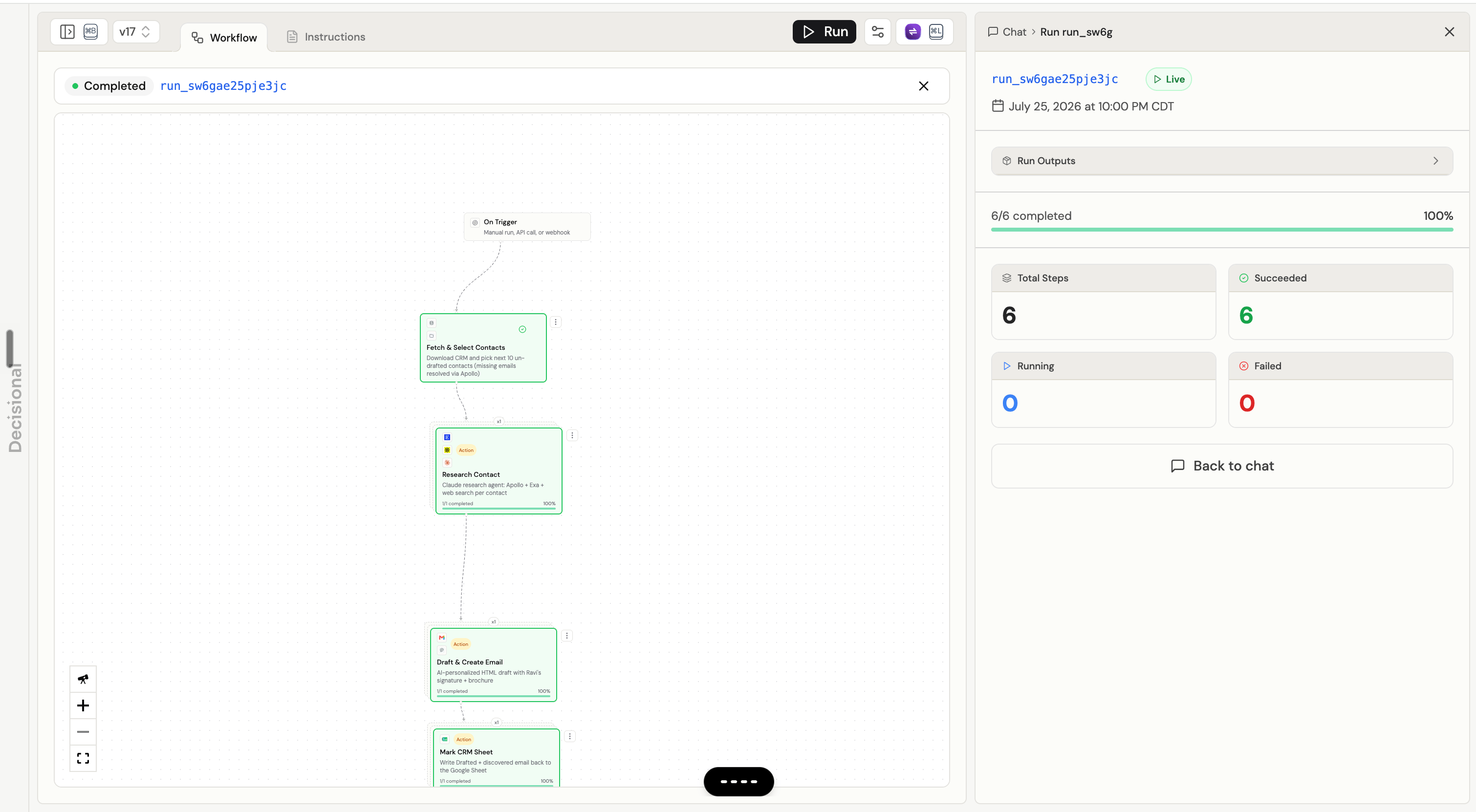
The graph shows which workflow path ran and the execution state of each node. During a run:
* A running node shows active progress.
* A successful node is marked as completed.
* A failed or rejected node is marked as failed.
* A node can show several executions when it runs once for each item or row.
* A reused result is identified when a successful test execution was reused instead of running the node again.
Select a node to review its executions. If the node ran more than once, choose the individual execution you want to inspect.
### Read the run summary
The run summary shows:
* Run ID, type, and start time
* Overall progress across the workflow
* Total, succeeded, running, and failed step counts
* A shortcut to pending approvals when a step needs review
* A credit warning when a step is paused for credits
* Run output files grouped by the node that created them
Open **Run Outputs** to view or download an individual output file. Use **Back to chat** to return to the conversation without clearing the selected run.
## Inspect a Node Execution
Select a workflow node, open **Executions**, and choose an execution to see what happened at that step.
The execution panel can include:
| Section | What it contains |
| - | - |
| **Execution Info** | Node name and type, execution ID, status, duration, retry count, and timestamps |
| **Error Details** | The error returned by a failed execution |
| **Input Data** | The structured values the node received |
| **Output Data** | The structured values the node produced |
| **Live Logs** | Streaming or saved log lines, with an option to copy them |
| **Live Browser** | A live browser preview when a running browser task provides one |
| **Log Files** | Log artifacts that can be opened individually |
| **Approval Info** | The reviewer and notes for an approval decision |
| **Dex Status** | Follow-up state for a Dex node, including what it is waiting for when available |
Start with **Error Details**, then compare **Input Data** and **Output Data**. Use **Live Logs** or **Log Files** when the error message alone does not explain the failure.
## Run Statuses
Every run has a status that tells you whether it is queued, active, waiting for something, or finished.
| Status | What it means | What you can do |
| - | - | - |
| **Pending** | The run was accepted and is waiting to start. | Open it to monitor progress or cancel an eligible Live or Test run. |
| **Running** | One or more workflow nodes are executing. | Watch the graph, inspect active nodes, or cancel an eligible Live or Test run. |
| **Pending approval** | A node is paused until a person approves or rejects it. | Open the approval from the run summary or node, then approve or reject it. |
| **Needs credits** | A node paused before a metered AI or code-agent call. | Add credits or raise the agent limit, then retry the affected node. |
| **Self-healing** | Decisional is diagnosing a failed execution and attempting a repair. | Follow its progress or cancel an eligible run. |
| **Waiting for input** | The repair process asked a person for clarification. | Return to chat, answer the question, or cancel an eligible run. |
| **Completed** | All required work finished successfully. | Review the graph, node executions, outputs, and files. |
| **Partially completed** | Some work finished, but one or more parts remain incomplete. | Inspect the affected node and Resume an eligible Live or Test run. |
| **Failed** | The run stopped because required work could not complete. | Inspect the failed execution and Resume an eligible Live or Test run. |
| **Cancelled** | A person stopped the run before it finished. | Review completed steps and any external actions before starting again. |
**Pending**, **Running**, **Pending approval**, **Needs credits**, **Self-healing**, and **Waiting for input** can still change. **Completed**, **Partially completed**, **Failed**, and **Cancelled** are final states.
## Run and Node Actions
### Cancel a run
Cancel is available for eligible **Live** and **Test** runs while they are active or waiting. It is not offered for Build or Action runs from the run list.
Cancelling stops remaining work. It does not reverse work that already completed, such as a message that was sent or a record that was updated.
### Resume incomplete work
Resume is available for eligible **Live** and **Test** runs in **Failed** or **Partially completed** status. It continues incomplete work instead of starting the entire run again.
### Retry one node
For a failed, retrying, or credit-blocked node execution, the execution panel can offer:
* **Retry** to run that node execution again
* **Edit Code & Retry** to adjust the node code for this job and retry it
Code entered through **Edit Code & Retry** applies only to that job. It does not update the agent's main workflow or other jobs.
## Investigate an Incomplete Run
Select the Failed or Partially completed run from Agent Runs.
Use the workflow graph and run summary to locate failed, rejected, waiting, or credit-blocked work.
Select the node, open **Executions**, and choose the relevant execution.
Read the error, input, output, logs, and approval or credit state shown for that execution.
Fix the underlying data, credential, integration, source, instruction, or workflow configuration.
Retry the affected node when the execution panel offers it, or Resume the run when incomplete Live or Test work remains.
## Related Docs
Understand the graph and the nodes that execute during a run.
Learn how review steps pause and continue a run.
Monitor activity, tool calls, and credit usage across agents.
Ask about agents and runs from a conversation.
### Read the workflow graph
The graph shows which workflow path ran and the execution state of each node. During a run:
* A running node shows active progress.
* A successful node is marked as completed.
* A failed or rejected node is marked as failed.
* A node can show several executions when it runs once for each item or row.
* A reused result is identified when a successful test execution was reused instead of running the node again.
Select a node to review its executions. If the node ran more than once, choose the individual execution you want to inspect.
### Read the run summary
The run summary shows:
* Run ID, type, and start time
* Overall progress across the workflow
* Total, succeeded, running, and failed step counts
* A shortcut to pending approvals when a step needs review
* A credit warning when a step is paused for credits
* Run output files grouped by the node that created them
Open **Run Outputs** to view or download an individual output file. Use **Back to chat** to return to the conversation without clearing the selected run.
## Inspect a Node Execution
Select a workflow node, open **Executions**, and choose an execution to see what happened at that step.
The execution panel can include:
| Section | What it contains |
| - | - |
| **Execution Info** | Node name and type, execution ID, status, duration, retry count, and timestamps |
| **Error Details** | The error returned by a failed execution |
| **Input Data** | The structured values the node received |
| **Output Data** | The structured values the node produced |
| **Live Logs** | Streaming or saved log lines, with an option to copy them |
| **Live Browser** | A live browser preview when a running browser task provides one |
| **Log Files** | Log artifacts that can be opened individually |
| **Approval Info** | The reviewer and notes for an approval decision |
| **Dex Status** | Follow-up state for a Dex node, including what it is waiting for when available |
Start with **Error Details**, then compare **Input Data** and **Output Data**. Use **Live Logs** or **Log Files** when the error message alone does not explain the failure.
## Run Statuses
Every run has a status that tells you whether it is queued, active, waiting for something, or finished.
| Status | What it means | What you can do |
| - | - | - |
| **Pending** | The run was accepted and is waiting to start. | Open it to monitor progress or cancel an eligible Live or Test run. |
| **Running** | One or more workflow nodes are executing. | Watch the graph, inspect active nodes, or cancel an eligible Live or Test run. |
| **Pending approval** | A node is paused until a person approves or rejects it. | Open the approval from the run summary or node, then approve or reject it. |
| **Needs credits** | A node paused before a metered AI or code-agent call. | Add credits or raise the agent limit, then retry the affected node. |
| **Self-healing** | Decisional is diagnosing a failed execution and attempting a repair. | Follow its progress or cancel an eligible run. |
| **Waiting for input** | The repair process asked a person for clarification. | Return to chat, answer the question, or cancel an eligible run. |
| **Completed** | All required work finished successfully. | Review the graph, node executions, outputs, and files. |
| **Partially completed** | Some work finished, but one or more parts remain incomplete. | Inspect the affected node and Resume an eligible Live or Test run. |
| **Failed** | The run stopped because required work could not complete. | Inspect the failed execution and Resume an eligible Live or Test run. |
| **Cancelled** | A person stopped the run before it finished. | Review completed steps and any external actions before starting again. |
**Pending**, **Running**, **Pending approval**, **Needs credits**, **Self-healing**, and **Waiting for input** can still change. **Completed**, **Partially completed**, **Failed**, and **Cancelled** are final states.
## Run and Node Actions
### Cancel a run
Cancel is available for eligible **Live** and **Test** runs while they are active or waiting. It is not offered for Build or Action runs from the run list.
Cancelling stops remaining work. It does not reverse work that already completed, such as a message that was sent or a record that was updated.
### Resume incomplete work
Resume is available for eligible **Live** and **Test** runs in **Failed** or **Partially completed** status. It continues incomplete work instead of starting the entire run again.
### Retry one node
For a failed, retrying, or credit-blocked node execution, the execution panel can offer:
* **Retry** to run that node execution again
* **Edit Code & Retry** to adjust the node code for this job and retry it
Code entered through **Edit Code & Retry** applies only to that job. It does not update the agent's main workflow or other jobs.
## Investigate an Incomplete Run
Select the Failed or Partially completed run from Agent Runs.
Use the workflow graph and run summary to locate failed, rejected, waiting, or credit-blocked work.
Select the node, open **Executions**, and choose the relevant execution.
Read the error, input, output, logs, and approval or credit state shown for that execution.
Fix the underlying data, credential, integration, source, instruction, or workflow configuration.
Retry the affected node when the execution panel offers it, or Resume the run when incomplete Live or Test work remains.
## Related Docs
Understand the graph and the nodes that execute during a run.
Learn how review steps pause and continue a run.
Monitor activity, tool calls, and credit usage across agents.
Ask about agents and runs from a conversation.