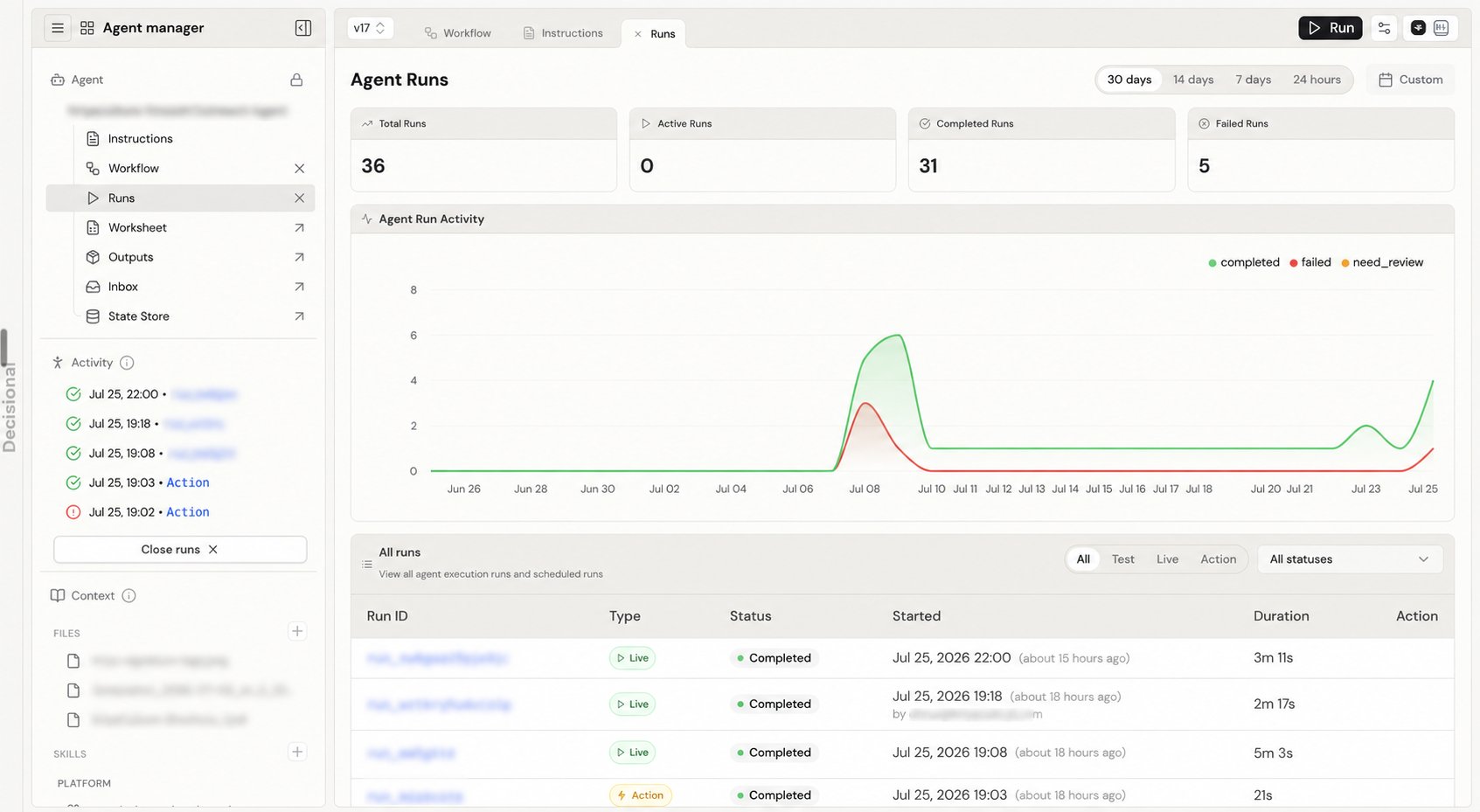
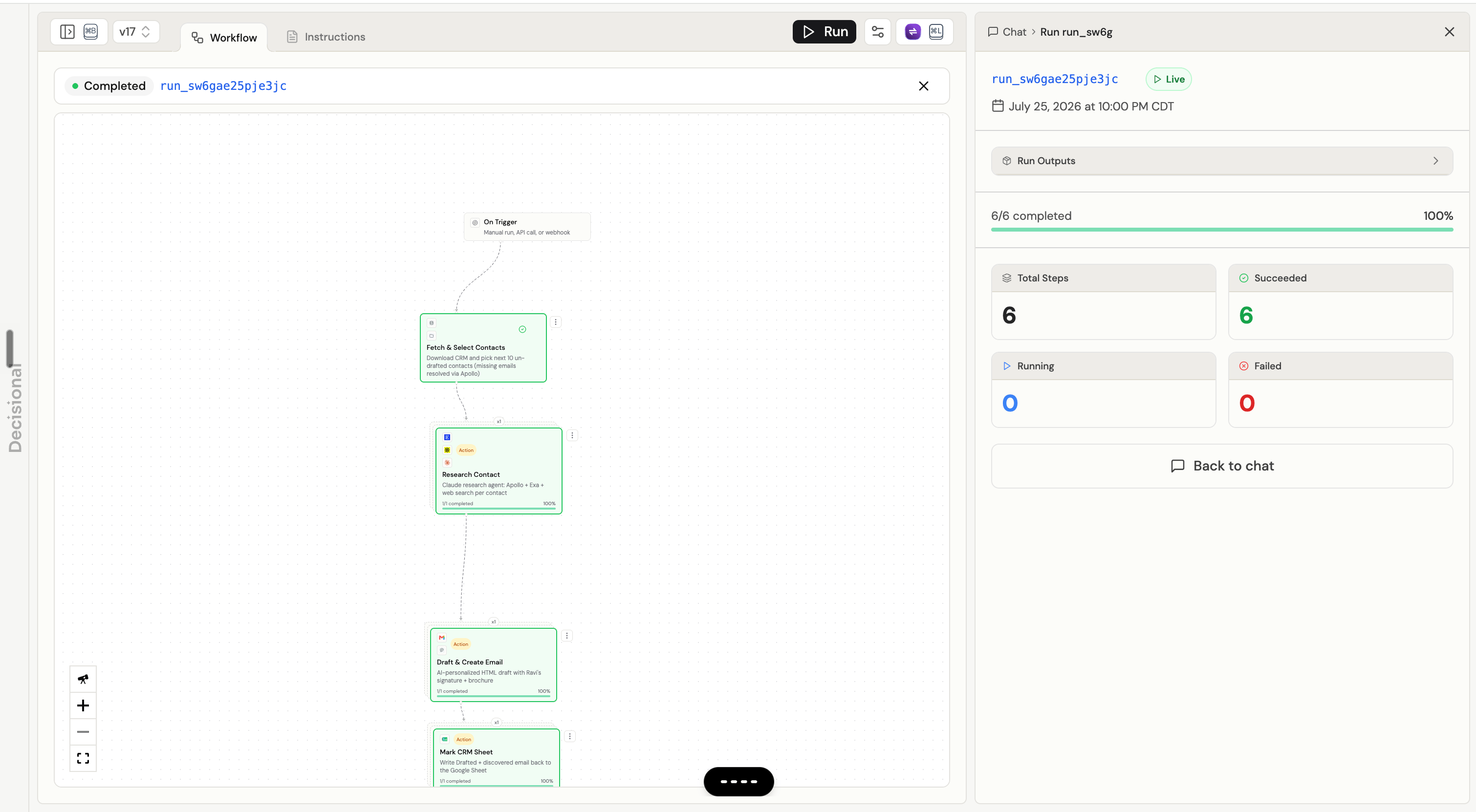
What Are Runs?
A run is a single execution of your agent’s workflow. Every time your agent performs its task—whether triggered manually, by schedule, or by event—that’s a run.Manual Run
You click “Test Run” button
Scheduled Run
Runs at 9 AM every day
Event Run
Triggered by new email or webhook
API Run
Executed via API call
Run Statuses
Every run has a status that tells you what’s happening:Running
Running
What it means: The agent is currently executingWhat you see:
- Real-time progress in the run log
- AI reasoning step-by-step
- Updates as data is processed
- Watch live progress
- Cancel if needed
Completed
Completed
What it means: The agent finished successfullyWhat you see:
- Full execution log
- All outputs written
- Summary of what was done
- Green checkmark icon
- “Completed” badge
- Final timestamp
- Review results
- Download logs
- Re-run if needed
Failed
Failed
What it means: The agent encountered an errorWhat you see:
- Error message
- Stack trace (if available)
- Where it failed in the workflow
- Red X icon
- “Failed” badge
- Error details in logs
- Read error message
- Debug the issue
- Fix and retry
Needs Review
Needs Review
What it means: The agent is waiting for human approval (human-in-the-loop)What you see:
- What the agent wants to do
- Why it needs approval
- Options to approve/reject/modify
- Yellow pause icon
- “Needs Review” badge
- Notification sent (if configured)
- Review the decision
- Approve to continue
- Reject to stop
- Modify and approve
Canceled
Canceled
What it means: You or another user stopped the runWhat you see:
- Partial results (what was done before cancellation)
- “Canceled by [user]” message
- Timestamp of cancellation
- Gray ban icon
- “Canceled” badge
- Review partial work
- Start a new run if needed
Viewing Run History
Access all past runs from the Runs tab.Filter & Search
Use filters to find specific runs:
- Status (Completed, Failed, etc.)
- Date range
- Trigger type
Run List View
Each run in the list shows:| Column | Description |
|---|---|
| Status | Visual indicator (✅❌⏸️) |
| Start Time | When the run began |
| Duration | How long it took (or “In progress…”) |
| Trigger | Manual, Schedule, Event, API |
| Items Processed | How many rows/items (if applicable) |
| User | Who triggered it (for manual runs) |
Understanding Run Logs
Logs show you exactly what your agent did and why.Log Structure
- Execution Timeline
- AI Reasoning
- Source Citations
- Integration Activity
Chronological view of all actions:
Log Details
Click any log entry to expand and see:- Full context: What led to this action
- Input data: What the agent received
- Output data: What the agent produced
- Timing: How long this step took
- Citations: Which sources were used
Debugging Failed Runs
When a run fails, follow these steps to identify and fix the issue.Debugging Workflow
Read the Error Message
The error message tells you what went wrong:Common errors:
- “Source not found” → Source was deleted or renamed
- “Column ‘XYZ’ not found” → Column name changed or misspelled
- “API rate limit exceeded” → Too many requests to external service
- “Formula error in cell B5” → Worksheet formula is broken
Find Where It Failed
Look at the execution timeline to see the last successful step before failure.Example:Row 7 is the problem.
Reproduce in AI Assistant
Use the AI Assistant to test the failing scenario:This lets you debug interactively.
Identify Root Cause
Common causes:Data issues:
- Missing required fields
- Invalid formats (wrong date format, non-numeric text)
- Unexpected values
- Source deleted or renamed
- Integration disconnected
- Column names changed
- Instructions don’t handle edge case
- Missing validation rules
- Incorrect formula in worksheet
Fix the Issue
Based on root cause:Data issues: Clean the data, add validation
Configuration issues: Reconnect integration, re-upload source
Logic issues: Update instructions, add error handling
Common Failures & Solutions
Source not found
Source not found
Error:
Source "Price List 2024.xlsx" not foundCause: Source was deleted, renamed, or never uploadedSolution:- Go to Sources tab
- Check if source exists
- If renamed, update instructions with new name
- If deleted, re-upload the source
Column not found
Column not found
Error:
Column "Customer Name" not found in worksheetCause: Column was renamed, deleted, or misspelled in instructionsSolution:- Open the worksheet
- Verify column name (check spelling and case)
- Update instructions to match exact column name
- Or rename column to match instructions
Integration error
Integration error
Error:
Gmail integration failed: Authentication expiredCause: Integration was disconnected or credentials expiredSolution:- Go to Settings → Integrations
- Find the failing integration
- Click Reconnect
- Authorize again
- Retry the run
Formula error
Formula error
Error:
Formula error in cell E5: #DIV/0!Cause: Worksheet formula dividing by zero or referencing invalid cellsSolution:- Open worksheet and navigate to cell E5
- Check the formula
- Fix the formula (e.g., add IF check for zero)
- Save worksheet
- Retry run
Timeout error
Timeout error
Error:
Run timed out after 10 minutesCause: Processing too much data or very slow external APISolution:- Process in smaller batches (e.g., 100 rows at a time)
- Optimize sources (remove unnecessary documents)
- Simplify instructions (fewer complex steps)
- Check external APIs (slow response times)
Run Actions
Manual Run
Click Test Run to execute your agent immediately. Use when:- Testing new agent
- Processing one-off task
- Debugging an issue
- Verifying a fix
Retry Run
Click Retry on a completed or failed run to execute again with the same inputs. Use when:- Run failed due to temporary issue (API downtime)
- You fixed the problem and want to reprocess
- Testing if your fix worked
Cancel Run
Click Cancel while a run is in progress to stop execution. What happens:- Agent stops processing
- Partial results may be saved
- Run marked as “Canceled”
- Realized you need to make a change
- Processing wrong data
- Emergency stop needed
Download Logs
Click Download Logs to export the full execution log as a text file. Use when:- Sharing with support team
- Archiving for compliance
- Detailed offline analysis
- Debugging complex issues
Performance Monitoring
Track your agent’s performance over time.Key Metrics
Success Rate
Formula: (Completed runs / Total runs) × 100%Good: > 95%
Needs attention: < 90%Improve by:
- Better error handling
- Data validation
- More robust instructions
Average Duration
What to track: Median run timeBenchmarks:
- Simple tasks: < 30 seconds
- Medium complexity: 1-3 minutes
- Complex workflows: 5-10 minutes
- Reduce source count
- Optimize worksheet structure
- Process in parallel
Items Per Run
What to track: How many items processed per runBenchmarks:
- Small batches: 10-50 items
- Medium batches: 50-500 items
- Large batches: 500+ items
- Batch processing
- Parallel execution
- Efficient data structure
Manual Review Rate
Formula: (Runs needing review / Total runs) × 100%Good: < 10% (for most workflows)
Too high: > 30% (agent isn’t confident)Improve by:
- Better training data
- Clearer instructions
- More comprehensive sources
Viewing Performance Trends
- Success Rate Over Time
- Duration Trends
- Failure Patterns
Track success rate weekly or monthly:Goal: Upward trend toward 95%+
Advanced Run Management
Scheduled Runs
View upcoming and past scheduled executions. Upcoming runs:- Next execution time
- Trigger configuration
- Expected duration (based on history)
- Filter by “Scheduled” trigger type
- See execution pattern (daily, weekly, etc.)
- Identify missed runs (if any)
Bulk Actions
Manage multiple runs at once:- Retry all failed runs from the past 24 hours
- Download logs for all runs in a date range
- Export run data to CSV for analysis
Run Notifications
Get alerted when important events happen:Email Notifications
Email Notifications
Configure in Settings → Notifications:Options:
- Run completed (all runs or only failures)
- Run needs review (human-in-the-loop)
- Run duration exceeds threshold
- Run failed after 3 retries
Slack Notifications
Slack Notifications
Post to Slack channel when:Options:
- Agent completes run
- Agent fails
- Agent needs approval
- Daily summary (runs completed, failed, avg duration)
- Connect Slack integration
- Go to Settings → Notifications
- Enable “Send to Slack”
- Choose channel
Webhook Notifications
Call your API when runs complete:Payload:Use case: Integrate with your own monitoring/alerting system
Best Practices
Monitor regularly: Check run history at least weekly
Investigate failures immediately: Don’t let failed runs accumulate
Track trends: Look for patterns (time of day, specific data causing issues)
Set up notifications: Don’t rely on manually checking
Archive old logs: Download and store logs for compliance/audit
Test before scheduling: Always manually test before enabling schedule
Document fixes: When you debug an issue, note the solution for future reference
Troubleshooting
Runs not appearing in history
Possible causes:
- Filter applied: Clear all filters
- Wrong agent: Make sure you’re viewing correct agent
- Date range: Expand date range to “All time”
Can't cancel running agent
Possible causes:
- Already completing: Agent is finishing up
- Permission issue: You need Editor role or higher
- Browser issue: Refresh page and try again
Logs not showing details
Possible causes:
- Old run: Logs older than 90 days are archived (Enterprise has longer retention)
- Log level: Some details hidden based on plan
- Incomplete run: Run was canceled before logging completed
Next Steps
Working with Agents
Learn how to optimize agent instructions
AI Assistant
Debug runs interactively with chat
Integrations
Connect services for notifications and actions
API Reference
Programmatic access to run data